The moment your smart doorbell, your kids' tablets, your work laptop and that forgotten smart plug all share the same Wi-Fi password, you no longer have a home network. You have an open party where nobody checks invitations.
I learned this the annoying way. A few years back, my NAS drive started spinning up at 3 a.m. for no reason. Took me two evenings to figure out that a guest's phone had picked up my main Wi-Fi (I'd given the password weeks earlier and never rotated it), and some app on it was hammering my file shares. Nothing catastrophic. But it was a loud reminder: convenience quietly erodes security, one shared password at a time.
Here's how to set up a home network that is actually secure — not just "secure enough until something breaks." We'll walk through the router, the devices, the segmentation, and the boring maintenance nobody does but everyone should.
Key Takeaways
- Change the router's default admin credentials before you touch anything else
- Use WPA3 if your hardware supports it; WPA2-AES is the acceptable fallback
- Separate your IoT junk from your laptops and phones with a guest or VLAN network
- Firmware updates are not optional — they patch the holes attackers already know about
- Audit connected devices every few months; you'll be surprised what's on your network
- A "good enough" setup you actually maintain beats a perfect one you forget about
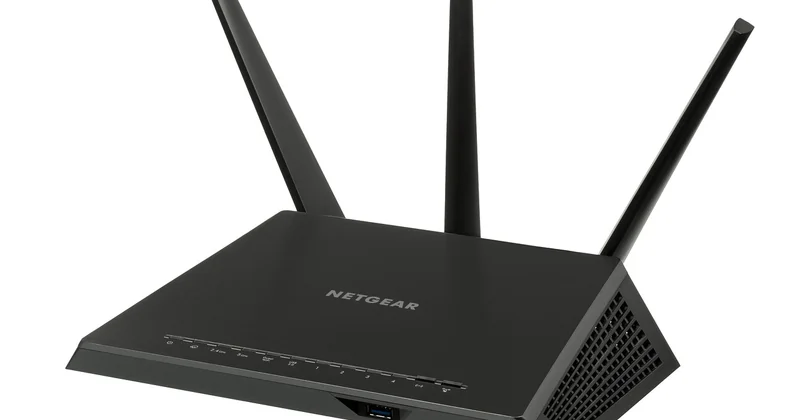
Start with the router: the front door of your secure home network
Everything else is decoration if your router is wide open. And routers ship from the factory with a default admin password printed on a sticker — which is fine, because it's the same username and password as thousands of identical units sitting in warehouses and on forums.
First thing: connect a laptop via Ethernet (yes, cable, just for the setup), open a browser, and hit the router's admin page. Usually something like 192.168.1.1 or 192.168.0.1. If those don't load, check the sticker or your router manufacturer's app.
What to change immediately
- The admin username and password (make it long, unique, stored in a password manager)
- Disable remote administration / WAN access to the admin panel
- Turn off WPS — the push-button pairing feature is convenient and historically easy to brute-force
- Disable UPnP unless a specific device absolutely needs it
That last one trips people up. UPnP lets apps open ports on your router automatically, which is great for gaming consoles and terrible for security because malware can do the same thing quietly. If you don't know why you need it on, turn it off.
Firmware updates are not a nice-to-have
I'll be blunt: if your router is more than five years old and the manufacturer stopped pushing firmware, replace it. I held onto a trusty unit for way too long because "it still works." It did work. It also hadn't received a security patch in over two years. That's not a router anymore, it's a known vulnerability with antennas.
Set a reminder to check for firmware updates every couple of months, or enable auto-update if the router supports it. This single habit catches more real-world attacks than any fancy configuration.
Lock down your Wi-Fi with WPA3 and a real password
Your Wi-Fi encryption is the lock on the door. Most people set it once during installation and never look again — which is how networks end up on WEP or WPA-TKIP, both of which are effectively broken.
Which encryption should you pick?
Go into the wireless security settings and check what's available:
- WPA3-Personal — use this if offered. It protects against offline password guessing, which WPA2 couldn't.
- WPA2-AES (CCMP) — solid fallback if you have older devices that choke on WPA3.
- WPA2/WPA3 mixed mode — a reasonable compromise when you can't upgrade everything at once.
- WEP, WPA-TKIP, "Open" — do not use any of these. They are essentially decorative.
On the password itself: length beats complexity. A four-word passphrase of 20+ characters is stronger and easier to type than "P@ssw0rd2026!". And please, don't reuse your email password for Wi-Fi.
Hide your SSID? No, that doesn't help
I used to recommend hiding the network name. I stopped. Any determined attacker sees hidden networks instantly, and you just make life harder for your own devices and guests. Skip it.
Separate your devices like adults at a dinner party
This is the part most guides skip, and honestly it's where the biggest real-world gains are. Not every device on your network deserves to talk to every other device.

Your smart TV from 2018 has no business reaching your laptop's file shares. Your IP camera doesn't need to see your NAS. Yet on a flat network, they all can, freely.
How to segment without buying enterprise gear
You have two practical options:
- Guest network — nearly every modern router has one. Put all your smart home devices on it. Set it to "isolate clients" so those devices can't talk to each other.
- VLANs — better separation, but requires a router or access point that supports them (many prosumer models do now). Worth it if you're comfortable with a slightly steeper config curve.
My setup: main network for laptops, phones, and the printer. Guest network for the camera, thermostat, smart plugs, and the robot vacuum. It took me about 40 minutes to reconfigure, and I broke two devices in the process because I'd forgotten one relied on seeing a local server. Annoying. Worth it.
Windows 11 and Windows 10 network settings
If your machines run Windows, mark your home Wi-Fi as a Private network only when you actually need file sharing. On public Wi-Fi, Windows 10 and 11 default to Public — keep it that way. When you're on a network you control, Private allows discovery; if you don't need it, leave discovery off in Settings → Network & Internet → Advanced network settings.
For file sharing between two home machines, enable Network Discovery and File and Printer Sharing on the Private profile only, then share specific folders with specific user accounts. Not "Everyone."
| Setup option | Best for | Effort | Real security gain |
|---|---|---|---|
| Single network, WPA3, strong password | Small apartments, few devices | Low | Solid baseline |
| Guest network for IoT | Most homes with smart devices | Low-medium | High — isolates the weakest links |
| VLANs per device category | Larger homes, prosumer gear | Medium-high | High but requires maintenance |
| Mesh with per-device policies | Multi-floor homes | Medium | Good, depends on the brand |
Monitor what's actually on your network
You can't secure what you don't see. Once a month, open your router's admin page and look at the connected devices list. Anything unfamiliar deserves a quick investigation.
Tools I've used and would recommend:
- Fing — phone app, scans your network, tells you make and model of most devices. Great starting point.
- Your router's own client list — less pretty than Fing, but it's the source of truth.
- Router logs — check them occasionally. Most are ugly and dense, but sudden repeated entries at odd hours are worth a look.
I once spotted a device labeled "Unknown" hanging around for three days. Turned out to be a neighbor's phone that had auto-connected to a network with an old shared password I hadn't changed yet. Fixed the password, problem gone. But the point stands: the audit is what catches it.
The part nobody wants to hear
Security isn't a weekend project. It's a habit. Rotate your Wi-Fi password once a year. Install firmware updates when they land. Review your device list. When you add a new gadget, ask which network it belongs on before you type the password.
None of this is glamorous. All of it works. And if you skip it? The most likely outcome isn't a dramatic hack — it's your smart speaker quietly participating in a botnet while you sleep, or a slow data leak from a camera you forgot was running.
The uncomfortable truth is that your home network is only as safe as the laziest device on it. And there's always a lazier device than you think. So go change that default password. Right now, before you close this tab.