You empty the Recycle Bin on Friday afternoon. On Monday morning you need the file that was in it. That sinking feeling — the one where your stomach drops and you start clicking around hoping you imagined it — is exactly why this guide exists. Deleted files are not always gone, and the difference between "recovered in five minutes" and "gone forever" almost always comes down to what you did in the minutes right after the deletion.
I've been through this more times than I'd like to admit. I once lost a client presentation two hours before the meeting, and I've also rescued a friend's wedding photos from a formatted SD card. The pattern I've learned is brutal: most people make it worse before they make it better. So before any tool, any command, any download — understand one rule.
Stop writing to the drive immediately. Every new file, every browser cache, every Windows update can overwrite the exact disk blocks holding your deleted data. The recovery window is real, and it closes faster than you think.
Key Takeaways
- Deleted files stay on disk until something overwrites their blocks — so kill all activity on that drive first.
- The Recycle Bin is the fastest recovery route; check it before anything else.
- Windows has a built-in tool called Windows File Recovery for files deleted outside the Recycle Bin (Shift+Delete).
- SSDs with TRIM enabled can wipe deleted data within minutes — recovery odds drop sharply.
- macOS and Linux have their own native tools worth knowing before you pay for software.
- The only guaranteed fix is prevention: backups, File History, and getting comfortable with the fact that "permanent" is permanent.
How to recover deleted files on your computer: start with the Recycle Bin
Before you touch a single recovery tool, open the Recycle Bin. Double-click it on the desktop, or type "Recycle Bin" in the Start menu search. Most deleted files sit there for 30 days by default, and restoring is a right-click away — select the file, choose Restore, and it returns to its original folder.
Why do people skip this step? Panic. They assume the worst and jump straight to downloading software. Don't. The Recycle Bin is free, instant, and works 80% of the time for ordinary deletions.
Why some files aren't in the Recycle Bin
Here's where it gets annoying. Several deletion paths bypass the bin entirely:
- You pressed Shift+Delete — a deliberate "skip the bin" command.
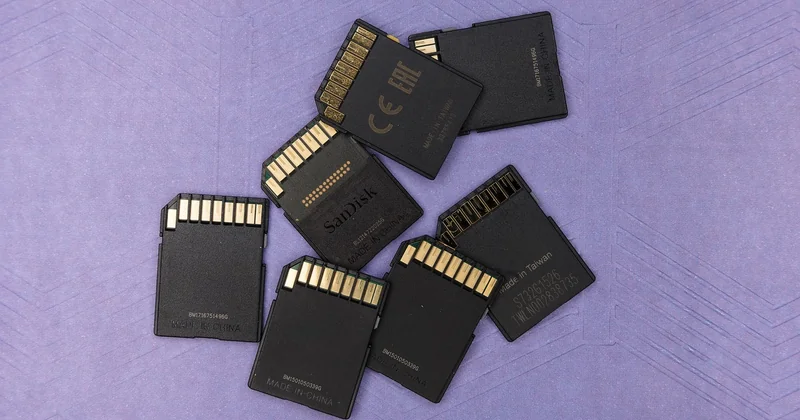
- The file lived on a USB stick, SD card, or external drive (external drives often don't use the Recycle Bin at all).
- It was deleted from a network drive.
- The Recycle Bin itself was emptied or its size limit was set too low.
- The file was too large for the bin's allocated space.
If none of these apply and the file still isn't there, you're now in "permanently deleted" territory. That's not the end — but it changes the approach.
How to recover permanently deleted files in Windows 10 and 11
Microsoft's own answer to this problem is a command-line tool called Windows File Recovery. It's free, available from the Microsoft Store, and it works on internal drives, external drives, USB sticks, and SD cards.
The catch: it has no graphical interface. You type commands in a terminal, and if you get the syntax wrong, nothing happens. I'll admit I botched my first attempt — I forgot the mode flag and the tool just sat there. Once you know the structure, it's manageable.
How Windows File Recovery actually works
There are three signature modes, and picking the right one matters:
| Mode | Use when | File systems |
|---|---|---|
| Regular | The drive was recently formatted or files deleted normally | NTFS |
| Extensive | Files deleted long ago, drive reformatted, or you need a deep scan | NTFS, FAT, exFAT, ReFS |
| Segment | You're targeting a specific file type with a known signature | NTFS (often with ext4) |
A basic command looks like this:
winfr C: D: /regular /n \Users\YourName\Documents\report.docx
That tells the tool: scan drive C, write recovered files to drive D, use regular mode, and look for a specific file. Always recover to a different drive than the one you're scanning — writing recovered data back to the source can overwrite the very blocks you're trying to save.
The trade-off is speed versus thoroughness. A Regular scan of a 500 GB drive took me about 20 minutes. An Extensive scan on the same drive ran past the two-hour mark — but it found files Regular had missed, including a batch of images I'd deleted months earlier.
When Windows File Recovery won't save you
This tool is powerful, but it isn't magic. It struggles or outright fails in a few scenarios:
- SSDs with TRIM enabled. Modern solid-state drives actively erase deleted data to keep performance up. On many systems, this happens within minutes. If your file was on an SSD and TRIM fired, recovery odds are slim to none — no tool can defeat a drive that has already zeroed the blocks.
- BitLocker encryption. If the drive is encrypted, recovery tools see scrambled data. You'd need the recovery key.
- Heavy subsequent activity. If you kept using the drive for hours after deleting the file, you've likely overwritten the data.
In these cases, third-party software sometimes does better with deep scans. Tools like Recuva, PhotoRec, and Disk Drill have their fans. PhotoRec, in particular, is free and open-source, and it doesn't rely on the file system — it scans raw sectors for known file signatures. That means it can rescue photos from a corrupted card that Windows can't even read.
How to restore deleted files on Android
Android handles deletion differently from a desktop, and the recovery path depends heavily on the phone.

Google Photos has a Bin that holds deleted photos and videos for 60 days. Open the app, tap Library, then Bin, and restore what you need. Samsung devices have a similar Recently Deleted folder in the My Files app.
Files don't have a universal bin the way Windows does. If you deleted a document from the Files app, check the app's own trash — some manufacturers, Samsung included, keep a 30-day trash there. If it's not there, your options narrow fast.
Two honest realities about Android recovery:
- Most phones are encrypted by default, which makes raw-sector scanning harder than on a computer.
- If the file was stored on internal storage and the phone has kept running, the odds drop every hour. If it was on a removable SD card, your chances are much better — pull the card and scan it on a computer.
Can I recover files after a factory reset?
Usually no — a factory reset wipes the encryption keys, which makes existing data unreadable even if the raw blocks survive. Recovery before a reset is realistic; after it, it's mostly a lost cause. This is why backing up before selling or resetting a device matters.
How to recover deleted files on your computer without backup
No backup, no Recycle Bin, no previous version. That's the worst-case scenario, and it's where almost everyone lands.
Your realistic options, in order:
- Check File History or Previous Versions. Right-click the folder where the file lived and look for "Restore previous versions." If File History was on, you may find an older copy.
- Check cloud sync. OneDrive, Google Drive, and Dropbox all keep a version history for a limited window (typically 30 days). Open the web interface, not just the local folder — the trash lives online.
- Run a recovery tool on the original drive. Windows File Recovery for a first pass, then third-party software with a deep scan if that fails.
- Stop and reassess. If the drive is failing physically — clicking, not detected — do not run recovery software. Every read stresses the hardware. A professional data recovery service is expensive (hundreds to thousands in most cases), but it's the only option when the disk itself is dying.
One thing I've learned the hard way: the value of a file plummets the moment you accept it's gone. People recover files they cared about deeply, then two weeks later can't remember why. So before you spend money, ask whether the file is truly worth it.
The step that actually prevents this entire nightmare
Recovery is a rescue mission. Prevention is the real solution, and it takes ten minutes to set up.
Turn on File History in Windows (Settings, Update & Security, Backup). Plug in an external drive and let it run. On macOS, enable Time Machine. Both create automatic versioned backups without you thinking about it.
Then apply the 3-2-1 rule: three copies of anything important, on two different media types, with one copy off-site. For most people, that means a local external drive plus a cloud service. It sounds excessive until the day it isn't.
And build one small habit: before you Shift+Delete anything, pause for two seconds. That muscle memory is worth more than any recovery tool you'll ever install.
Here's the uncomfortable truth — most data loss isn't dramatic. It's a slip of the finger, a misclick, a "I'll deal with it later" that becomes "it's gone." The tools above work, sometimes impressively well. But the day you stop needing them is the day you've actually solved the problem. Until then, keep a backup drive plugged in and let it do its quiet work in the background. You'll thank yourself the next time your stomach drops.